

Written by Mo Kahn on
September 25, 2026


You've generated a gorgeous AI image, uploaded it to your community, and watched it collapse into a blurry square that nobody can read. The problem usually isn't the generator. It's the gap between high-resolution artwork and a reaction asset that has to communicate through a tiny interface, changing backgrounds, compression, file limits, and platform-specific permissions.
To create custom emoji that people use, treat the artwork as a visual system rather than a miniature illustration. Start with a bold concept, generate a clean base, remove distractions, test it at display size, and export for the strictest destination you expect to support.
A polished AI image can look convincing on a large canvas, then become unreadable as a tiny reaction asset. Fine hair, lettering, decorative texture, soft gradients, and scenery collapse together during reduction. At 128 pixels, a face or object may lose the shape that made it expressive in the first place.
Custom emoji need a clear silhouette, one focal point, and an emotion that survives downscaling. A raised eyebrow, open mouth, thumbs-up, lightning bolt, or exaggerated tear usually communicates faster than a carefully shaded face with several subtle cues. Platform compression and changing interface backgrounds make those choices more important.
Practical rule: If the subject is not recognizable at a quick glance, simplify the artwork before polishing it.
Emoji already function as visual shorthand in online communities. A 2016 academic analysis of emoji use on Twitter (source) found emojis in 19.6% of all tweets and 37.6% of users' tweets, with regional figures of 46.5% in Indonesia, 34.6% in the Philippines, 37.6% in Paraguay, and 33.5% in Algeria. The findings describe ordinary emoji use rather than custom uploads, but they show why compact reactions fit community conversations.
Build a strong outer contour and separate the subject from its background. A dark outline can preserve visibility on light interfaces, while a light border or restrained shadow can help in dark mode. Delicate color differences are unreliable because compression and app themes can make neighboring shades appear identical.
Center the composition and leave breathing room around the subject. An AI image upscaler can make a source file larger, but added resolution will not clarify an ambiguous silhouette. Test the asset at its actual display size, then adjust the eyes, mouth, hands, or primary object until the reaction reads without text.
The technical gap is simple to miss: generation produces a beautiful image, while deployment demands a legible symbol that survives fragmented platform rules. Evaluate the small version before exporting the large one.
The strongest prompt begins by describing the asset as an icon, not as a scene. Ask for one centered subject, an isolated composition, and a style built around bold shapes. The purpose is to reduce the amount of cleanup required after generation.
A useful structure is:
single centered subject, expressive [emotion or action], flat vector art, simple shape language, thick outline, high contrast, isolated on transparent or plain background, no text, no extra objects, emoji icon
For a character, replace the subject and emotion:
centered cartoon cat making an exaggerated shocked expression, flat vector art, thick dark outline, bold eyes, simple colors, isolated emoji icon, no background, no text
For an object-based reaction, make the action unmistakable:
single steaming coffee cup with an exaggerated nervous shake, flat design, thick outline, limited color palette, centered composition, clean emoji asset, no scenery, no lettering
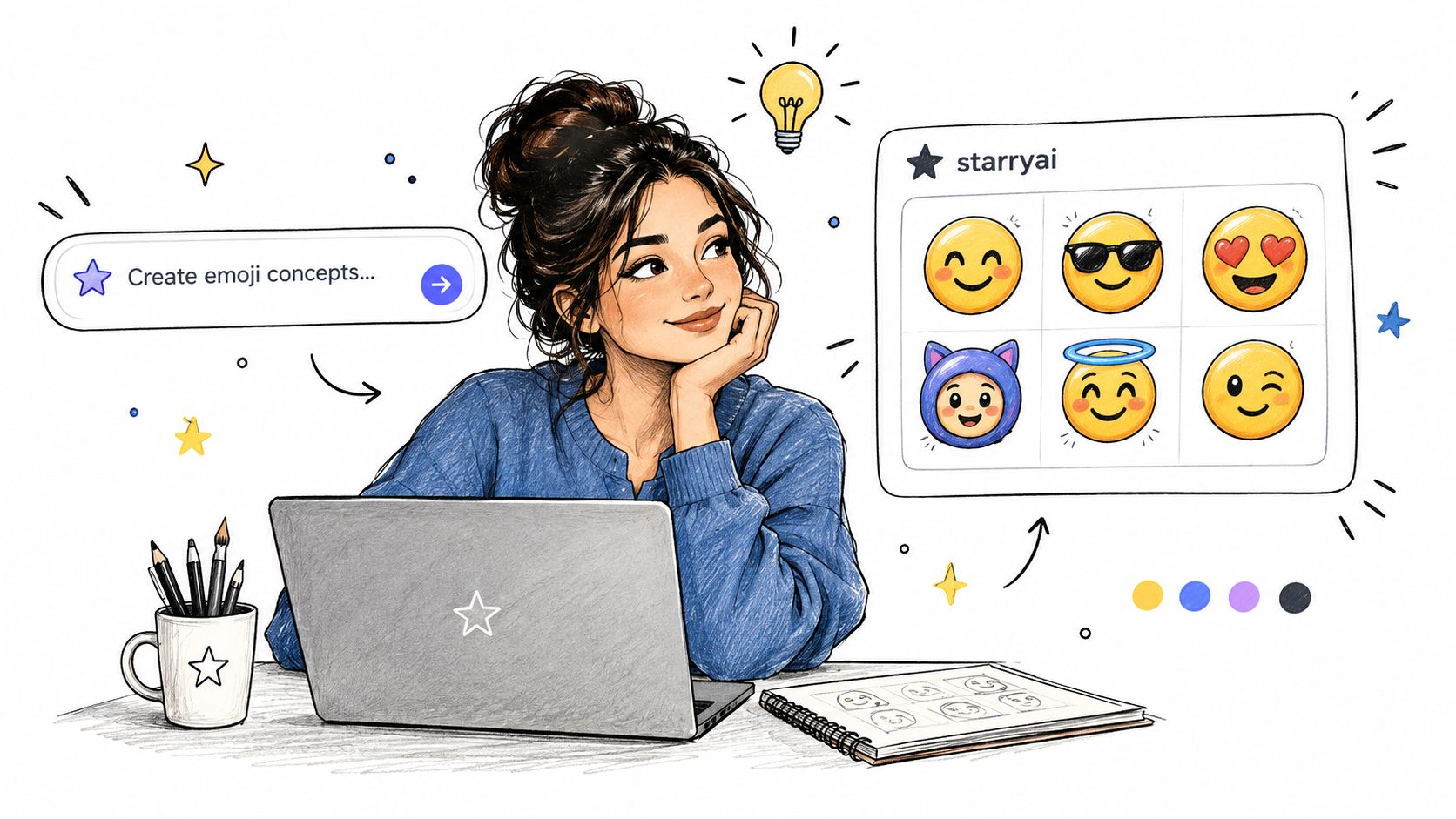
Words such as “vector art,” “flat design,” “thick outlines,” “bold silhouette,” and “isolated subject” push the model toward a cleaner starting point. Negative instructions such as “no background,” “no small details,” “no text,” and “no multiple characters” reduce common failure modes, although you should still inspect every result.
Exaggerate the emotion. A mildly amused face often becomes unreadable when reduced, while a wide grin, oversized eyes, flushed cheeks, or a dramatic sweat drop remains legible. Generate several variations of the same idea and compare them at small size, not only in the full-resolution preview.
If you're building a wider set for merchandise or creator products, it can help to browse AI print on demand data for broader visual and product context. The workflow is different from emoji design, but it reinforces the same useful habit: choose a repeatable visual language before producing many assets.
For more structured iteration, the starryai prompt engineering guide is useful when you need to control subject placement, style, and exclusions more consistently.
A useful emoji pack usually feels intentional. Keep the outline treatment, eye style, color behavior, and level of exaggeration consistent across the set. Mixing a soft painted portrait with a flat sticker character can make the collection feel assembled rather than designed.
Avoid asking for readable words inside the image. Text often becomes distorted, and tiny labels rarely survive display at chat size. If the reaction depends on a phrase, create the expression as a visual cue instead, then use the platform's alias or surrounding message for meaning.
A beautiful AI image can still fail as a reaction asset. At chat size, a busy scene becomes noise, thin details disappear, and a poorly cut edge looks like a sticker pasted onto the interface. Treat generation as the starting point, then refine the file for legibility across light and dark themes.
Begin by isolating the foreground. A transparent background works across more interfaces than a colored one, but background removal can damage hair, fur, smoke, translucent effects, and enclosed areas. Inspect the edge against both a pale and dark temporary background. Remove scenery, stray shapes, accidental fingers, duplicate facial features, and decorations that collapse when reduced.
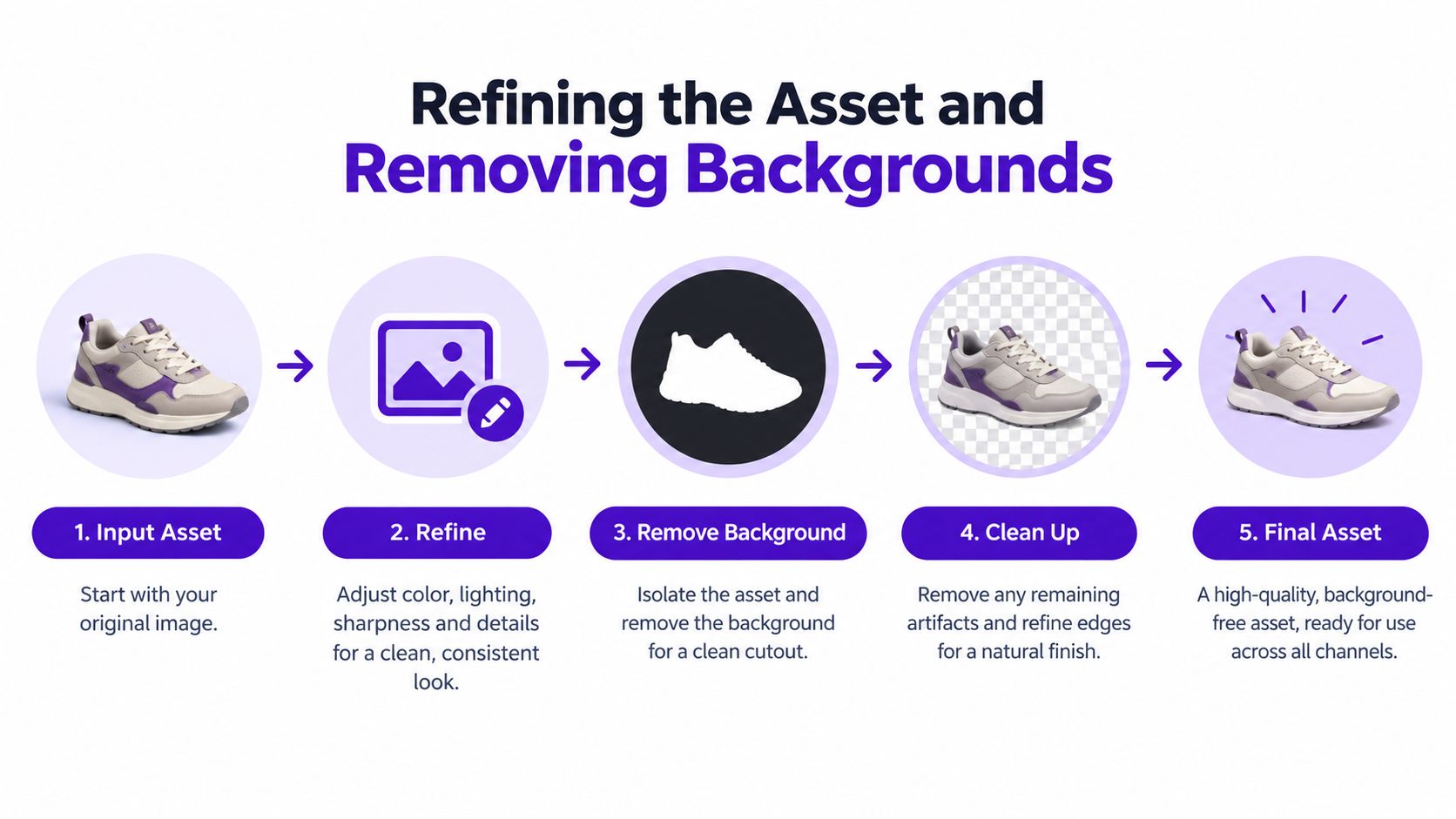
Crop the composition. Center the subject and remove excess margins, while keeping any gesture or outline that carries the reaction.
Remove the background. Use a dedicated background remover for creating transparent emoji artwork, then inspect holes inside letters, arms, handles, and other enclosed areas.
Repair the silhouette. Close gaps, remove fringe pixels, and simplify details that become uneven at small sizes. A clean contour usually communicates better than generated texture.
Tune contrast and saturation. Increase separation between the subject and its border without pushing colors into neon artifacts. If the asset fades against gray, it will struggle in a busy chat.
Test both themes. Place the emoji on white, charcoal, and a mid-tone background. A light border can protect bright artwork in dark mode, while a dark outline can preserve definition in light mode.
The Missouri LSFellowship production guide (workflow guidance) describes custom emoji work as stages covering concept, design, technical preparation, submission, and promotion, with typical allocations of 1–3 hours for concept, 2–6 hours for design, 1–2 hours for technical preparation, and 2–4 hours for submission. These ranges are planning guidance, not a fixed requirement. They still point to a practical constraint: technical preparation needs its own pass. Rushing it can create upload failures and send you back to artwork that was nearly finished.
Export a clean master, then make platform-ready copies. Keep the source editable so you can change the outline, expression, or crop later. Vector files help preserve sharp edges, while raster exports show how compression affects the actual upload.
Judge the smallest export beside a real chat message, not only in the full-size preview. Ask: What is it? What emotion does it express? Would a community member recognize it without an explanation? If any answer is uncertain, simplify the silhouette or expression instead of adding decoration. A reaction image succeeds when its meaning survives the technical gap between an impressive generation and a tiny, platform-constrained display.
A single export rarely fits every platform perfectly. The safest universal approach is to work from a transparent square master, export a static PNG first, and compress a copy to satisfy the strictest file-size requirement. Keep the subject large enough to read, but don't rely on one platform to resize or optimize the asset correctly.
Google Chat offers a relatively broad specification. Its custom emoji endpoint accepts a square image between 64 and 500 pixels, under 256 KB, in PNG, JPG, or GIF format (Google Chat requirements). Slack is tighter, while Discord adds naming and permission rules.
| Platform | Max File Size | Dimensions | Allowed Formats |
|---|---|---|---|
| Slack | Under 128 KB | Square | JPG, PNG, GIF |
| Discord | Under 256 KB | Platform accepts resized uploads, 128 × 128 is a practical target | PNG, JPG, GIF, WEBP, AVIF |
| Google Chat | Under 256 KB | Square, 64–500 pixels | PNG, JPG, GIF |
Slack's lower limit makes it a useful target for static assets. Export PNG when transparency and crisp edges matter, then remove unnecessary metadata and reduce the palette if the file remains too large. JPG can reduce size for opaque artwork, but it introduces compression artifacts around outlines and transparent backgrounds aren't available.
GIF is appropriate only when motion adds meaning. Animation can increase file size quickly, and Slack permits GIF emoji with up to 50 frames (Slack's custom emoji rules). For a reaction pack, static PNG usually gives you cleaner edges, simpler testing, and wider portability.
Use short, descriptive names. Discord requires names of at least 2 characters, with only alphanumeric characters and underscores (Discord naming requirements). Names such as party_panic or coffee_yes are easier to remember than random strings, and consistent aliases help community members discover the pack.
You don't need Unicode approval to make a custom emoji meaningful. A private server reaction, a team-specific approval icon, a streamer's recurring face, or a brand's customer-support signal can communicate more effectively inside its own community than a symbol designed for universal use.
The distinction matters because custom emoji assets and official Unicode emoji solve different problems. Unicode's guidance describes formal proposals that need evidence of broad, cross-platform usage, linguistic utility, visual distinctness, and no redundancy (Unicode's emoji and dingbat FAQ). That's a standards process, not an ordinary upload workflow.
The right question usually isn't “Can this become a universal emoji?” It's “Will this help this community react faster and with more personality?”
A community asset can refer to an inside joke, a recurring event, a creator's catchphrase, or a product-specific moment. Its value comes from context. A universal symbol needs to make sense to people everywhere, while a private emoji can be intentionally narrow and still become indispensable to the group that uses it.
Use a platform-native emoji when the asset needs to work as a quick reaction inside one server or workspace. Choose a sticker when you need a larger illustration, more text, or a composition that won't survive tiny display. Build a reusable brand asset when you want consistent characters, colors, and expressions across several channels.
This decision prevents a common waste of time. Creators often polish a detailed illustration, then force it into an emoji slot where the design has no room to breathe. A smaller, bolder asset can perform the intended communication job better than a technically impressive image.
Rapid iteration also favors community work. You can test a few expressions, remove the ones nobody uses, and expand the set around real conversation patterns. That feedback loop is more practical for most creators than pursuing standardization for a symbol that must work across every platform and audience.
A polished AI image can still fail as a tiny reaction asset. Upload errors usually come from a mismatch between the file and the destination. Check the canvas, file size, format, transparency, name, and account permissions before trying again.
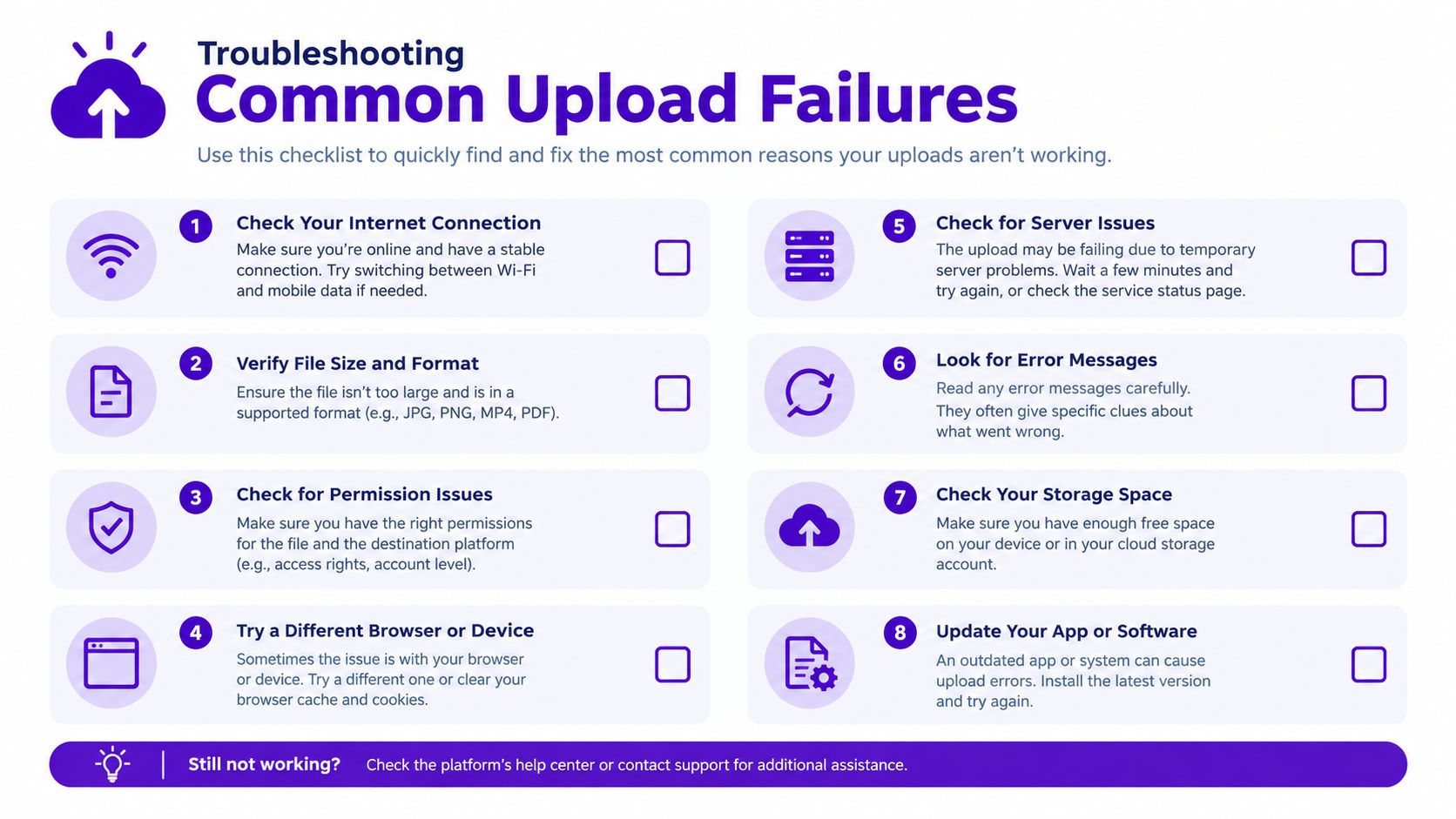
Run the checklist before each upload, then test the asset in a real conversation. The emoji is ready when people recognize it quickly and see it clearly in its target interface.
Use starryai to generate concept variations, refine the silhouette, remove the background, and prepare a PNG for testing at real chat size.


.svg)