

Written by Mo Kahn on


You have a good selfie open on your phone. You type "make this pop art" and wait for something bold. What comes back is your same photo, a little brighter, a little softer, and not really pop at all.
That first miss is normal. You're not missing talent. You're missing the few clear instructions that tell a pop art creator what to keep, what to flatten, and what to leave out.
Pop art reads at a glance because it strips an image down. You get flat color, hard outlines, and repeated shapes. Andy Warhol and Roy Lichtenstein built that language from ads, comics, and packaging. If your prompt doesn't ask for those parts, the tool fills the gap with photo detail.
Think of your prompt as six short ingredients. Change the subject each time. Keep the other five steady, and your results will start to look related.
| Ingredient | What to write | Sample phrase |
|---|---|---|
| Subject | the person, product or emoji, named plainly | a woman laughing at her phone |
| Pop art cue | name the movement and one visual reference | 1960s pop art comic panel |
| Color rule | three to five flat colors, named | flat red, yellow, cyan and black |
| Linework | thick outlines, no soft edges | bold black contour lines |
| Texture | halftone or dot pattern in shadows | visible dots on skin tones |
| Finish | a print-style signal | screen-print look with slight misalignment |
Your subject can be a person laughing, a coffee cup, a shoe, or one clear emoji. That flexibility is the point. The style comes from the rules around the subject, not from the subject alone.
Here's one full example built in order. "A woman laughing at her phone, 1960s pop art comic panel, flat red, yellow, cyan and black, bold black contour lines, visible dots on skin tones, screen-print look with slight misalignment."
Read that back and you can spot each ingredient. If you need more practice building prompts this way, work through more AI image generator prompt examples and swap in your own subjects.
Practical rule: Use at least four of the six ingredients. Use fewer, and your image will usually drift back toward a generic photo effect.
Start small. Pick one source, write one prompt, and make a small batch. You don't need a perfect first result. You need a result you can learn from.
The visual below shows the first two moves in the workflow.
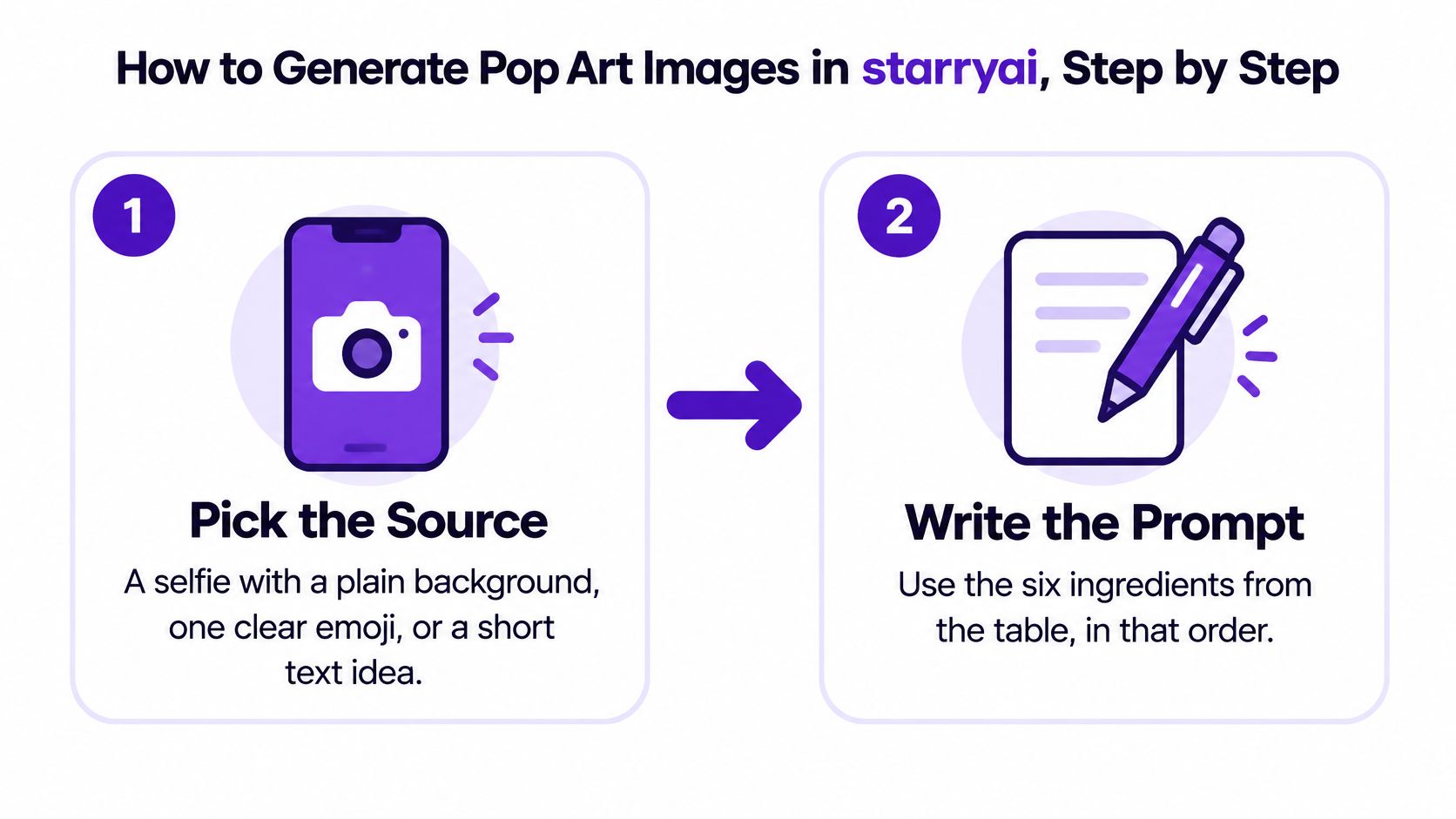
Those first three steps do most of the work. If the source is messy or the prompt is vague, later settings won't rescue it.
Notice what step six asks for. Not the prettiest image up close. The clearest one at a small size, where the majority of viewers will meet it.
Your first output is rarely the keeper, and that's fine. Change one ingredient per round. Swap the color rule, or enlarge the texture, or tighten the subject. Don't rewrite everything at once.
That slow approach feels patient, but it's faster in practice. You can see which change helped. When a round gets worse, you know exactly what to undo and what to keep for your next try as a pop art creator.
Each input fails in a different way. A selfie might lose your features. An emoji might lose its shape. A text prompt might give you color with no clear subject. So use the same formula, but adjust the emphasis for the input in front of you.
| Input | Best for | Prompt tweak | Main risk |
|---|---|---|---|
| Selfie | personal posts and transformations | front-lit face, flat color block behind the head | over-smoothed skin and blurred features |
| Emoji | sticker grids and quick reels | one emoji, bold outline, single fill color | fine detail lost at small sizes |
| Text prompt | merch art and book-cover concepts | composition, then palette, then texture | generic results with no named palette |
| Product photo | Etsy listings and packaging mockups | keep product shape, flatten background to one color | distorted label text |
Selfies are where many photographers begin. Keep your face front-lit and ask for a flat color block behind your head. That block separates you from the background and gives the outline something clean to work against.
Emojis ask for restraint. Name one emoji, ask for a bold outline, and give it a single fill color. Two emojis competing in one prompt usually blur into each other.
Text prompts need order. Describe the composition first, then the palette, then the texture. For a book cover concept, that might sound like "a lone figure centered, flat teal and orange, visible dots in the shadows."
Product photos need protection for the product itself. Say you want the product shape kept and the background flattened to one color. That helps the label area stay calmer and less distorted.
A convincing Lichtenstein-inspired image rests on flat commercial colors, thick contour lines, and a regular halftone field, as described in the National Gallery of Victoria guide to Benday dots and Pop Art printing. Ask for roughly 3 to 6 tonal bands, map each band to a solid ink color, and keep dot spacing and angle consistent.
Pay closest attention to skin and shadow areas. That's where uneven dots turn into noise. Consistent spacing reads as texture. Uneven spacing reads as a mistake.
Your first image may look striking at full size, then turn muddy on a phone. Shrink it to 10 to 15% of its final dimensions as a practical thumbnail test. If a face, outline, or dot pattern disappears, simplify that part. Small previews show whether the main shapes read before someone stops scrolling.
| Symptom | Likely cause | Fix |
|---|---|---|
| Looks like a filtered photo | realism wording in the prompt | remove photorealistic terms, add flat color and outlines |
| Muddy, blended colors | too many overlapping tones | cut to three to six named colors |
| Dots vanish on a phone | halftone too fine for the screen | enlarge dots and reduce tonal bands |
| Face warped or waxy | busy background or harsh shadow | simplify background and relight the selfie |
| Emoji loses its shape | prompt holds too many details | keep one subject and one outline |
| Colors shift in print | layers misaligned | preview each color layer and allow slight offset |
A filtered-photo look usually comes from words such as “realistic,” “detailed skin,” or “natural light.” Those cues steer the image toward photography. Replace them with flat color and bold black contour lines so the prompt asks for graphic shapes instead.
Muddy color has a different cause: too many tones compete, and the flat areas start to blend. Name only a few colors you can count on one hand. Removing shades can feel like losing richness, but clearer color blocks give the image a stronger pop art read.
If the dots vanish on a phone, enlarge them and use fewer tonal bands. Fine dots can look delicate up close, then disappear in a small preview. A slightly chunky pattern is easier to read.
A waxy face often needs changes to the setup, not more words in the prompt. Simplify the background, face the light, and try again. Harsh shadows can distort the result, so improve the lighting before asking for another style adjustment.
Print adds a separate issue. Preview each color layer on its own before combining them, so you can spot shifts where the dots overlap. A small, deliberate offset can suggest screen printing; random misalignment makes the colors look messy.
You don't need a big project to post something good. Start with one of these small formats, copy the prompt line, and change the subject to fit your account.
This image shows the kind of tablet preview many creators check before posting.
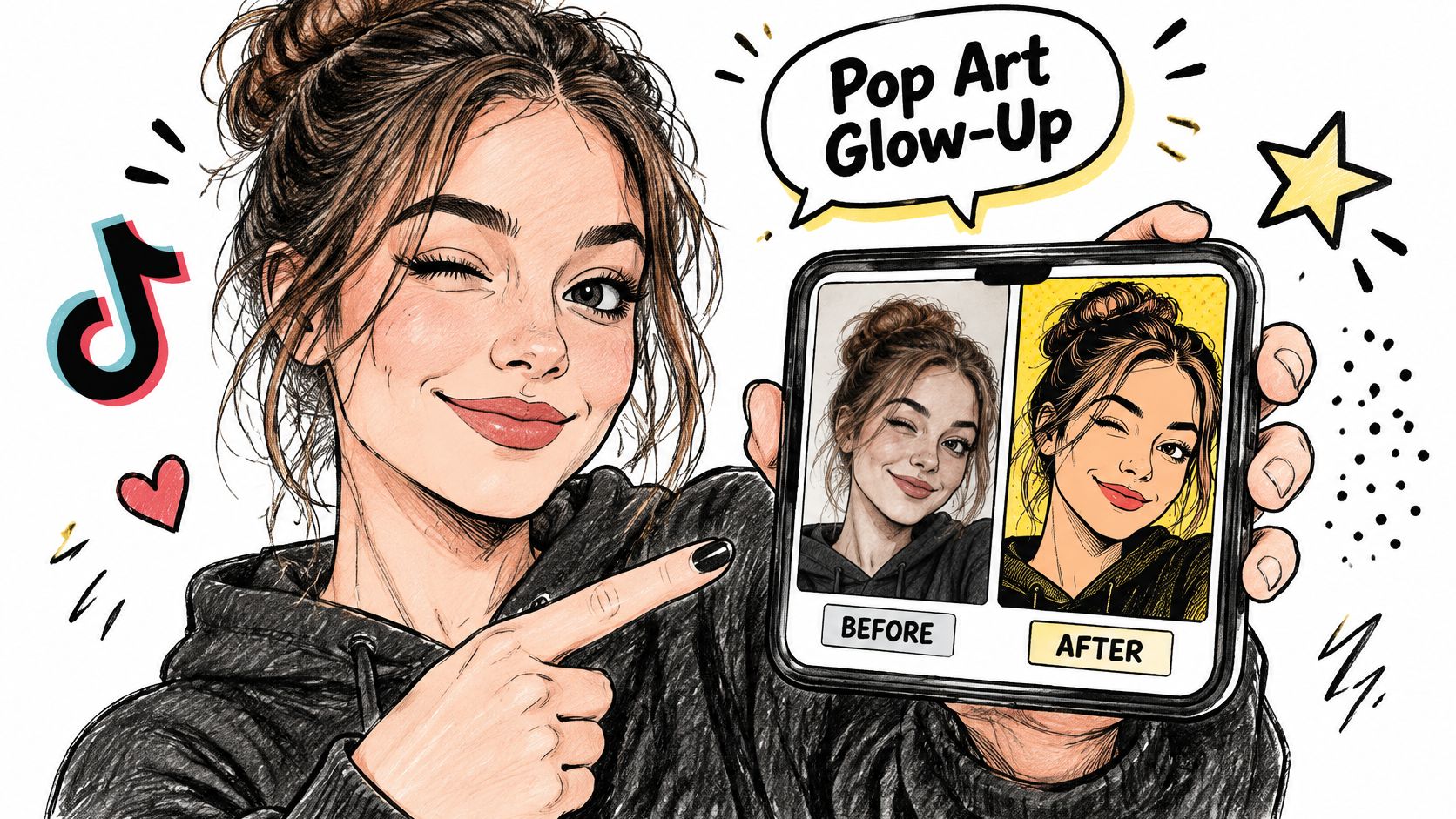
A before and after selfie. A TikTok creator uploads a front-lit selfie and uses this line. "Woman smiling at her phone, 1960s pop art comic panel, flat red, yellow, cyan and black, bold black outlines, visible dots on skin." She posts the original beside the result with a one-line caption naming the style. That caption is the finishing touch. It tells viewers what changed.
A seasonal glow-up tile. Take a holiday emoji and keep it simple. "One pumpkin emoji, bold black outline, single flat orange fill, thick border." Post it as a Reel cover. The border makes the tile feel finished instead of floating.
The short video below gives you another visual reference for the makeover effect before you try a grid.
A small emoji grid. Render one emoji in eight flat colors and arrange the series in a grid. Warhol's Campbell's Soup Cans from 1962 uses 32 canvases displayed in four rows of eight, as explained in the Museum of Modern Art account of Warhol's Campbell's Soup Cans. You don't need that many tiles. Borrow the idea that repetition itself is the hook, and keep one palette across the set.
A fan-made character card. Use a text-prompt character you've invented. "Young explorer with a round backpack, three-tone flat palette, clean black outline, plain background." A three-tone limit keeps the card readable on a phone, and an invented character keeps you clear of copying someone else's.
Most creators assume that if they generated an image, they own it in a way they can protect. That assumption is where trouble starts. A pop art style is open to use. A result you generated isn't automatically yours to claim.
The U.S. Copyright Office states that wholly AI-generated material is generally not copyrightable, while human-authored expression, creative arrangement, or meaningful modifications may qualify, and prompting alone is insufficient, as set out in the U.S. Copyright Office report on copyright and artificial intelligence. Read that carefully if you sell prints, merch, or book covers.
Keep evidence of your own choices. Save each item in one folder per project.
That folder helps you show human contribution if a platform or buyer asks. Before you list anything, also read up on commercial use rights for AI images and check the terms that apply to your account and your country. Commercial safety depends on jurisdiction and human contribution, not on pressing Generate.
Before you publish, ask three questions. Does this copy a living artist's signature composition? Does any symbol belong to a specific community, and are you using it only as decoration? Does your work give its source new meaning, or does it only copy the look?
If you answer yes to any of them, pause. Rework the composition, remove the symbol, or credit the source you built on. A distinctive approach of your own is safer, and it's also more memorable than a close copy.
Pick one thing to make today. One selfie, one emoji, or one short text idea. Write its prompt with the six ingredients and generate it in starryai.
Then run the thumbnail check at 10 to 15% of final size. The main shape and two or three colors must still read. If they don't, use the matching fix from the symptom table before you do anything else.
When an image passes, export it in the shape your platform needs. Write a one-line caption that names the pop art style. If you're unsure how to send or post the file, check the sharing options for your finished images before you export.
Store the source photo, prompt log, and final settings in one folder. That small habit takes a minute now and saves real confusion later.
A pop art post succeeds when it reads at thumbnail size.
Post once the image reads clearly on your phone. For your next round, keep the same prompt and change one ingredient, such as the color rule. That's how a single post becomes a recognizable series, and how you learn what your audience responds to.
starryai is a place to test and iterate quickly. The decision about what to publish or sell stays with you.
Open starryai and run your first six-ingredient prompt today, starting from a selfie, an emoji, or a short text idea. You'll get a small batch in seconds, so you can apply the thumbnail test right away and change one ingredient at a time until the image reads clearly.


.svg)