





 200 lumens / month
- Create videos with lumens
- Free 4× image upscaling
- 50% off lumens
- Ad-free experience
- Unlock all canvas sizes
- Bulk creations
Trusted by 500k+ creators
Edit your video with a prompt
Change the light, extend a shot or give a character new moves, one clip or every clip at once. Then trim, add music and export.
Describe the change. Keep the shot.
Tell starryai what should be different, like the time of day, the weather or the style. Compare the result with your original before it goes on your timeline.
Edit a clip with a prompt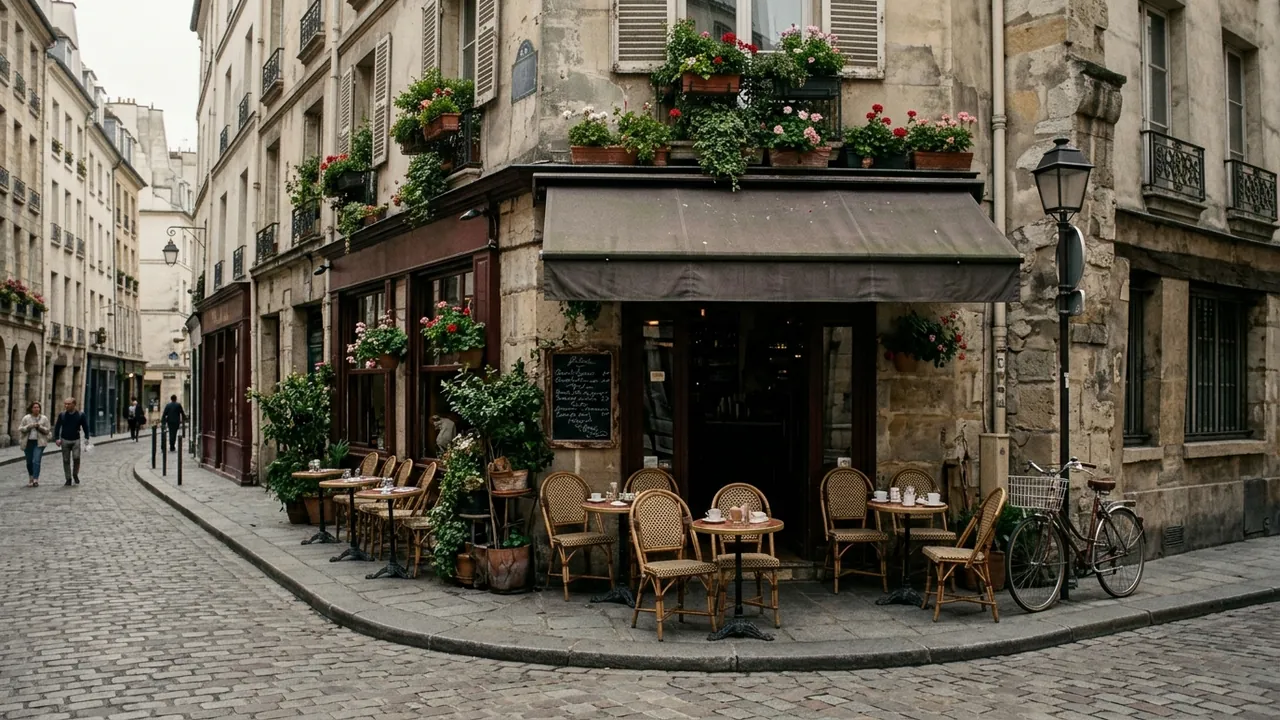

Seven ways to change a shot
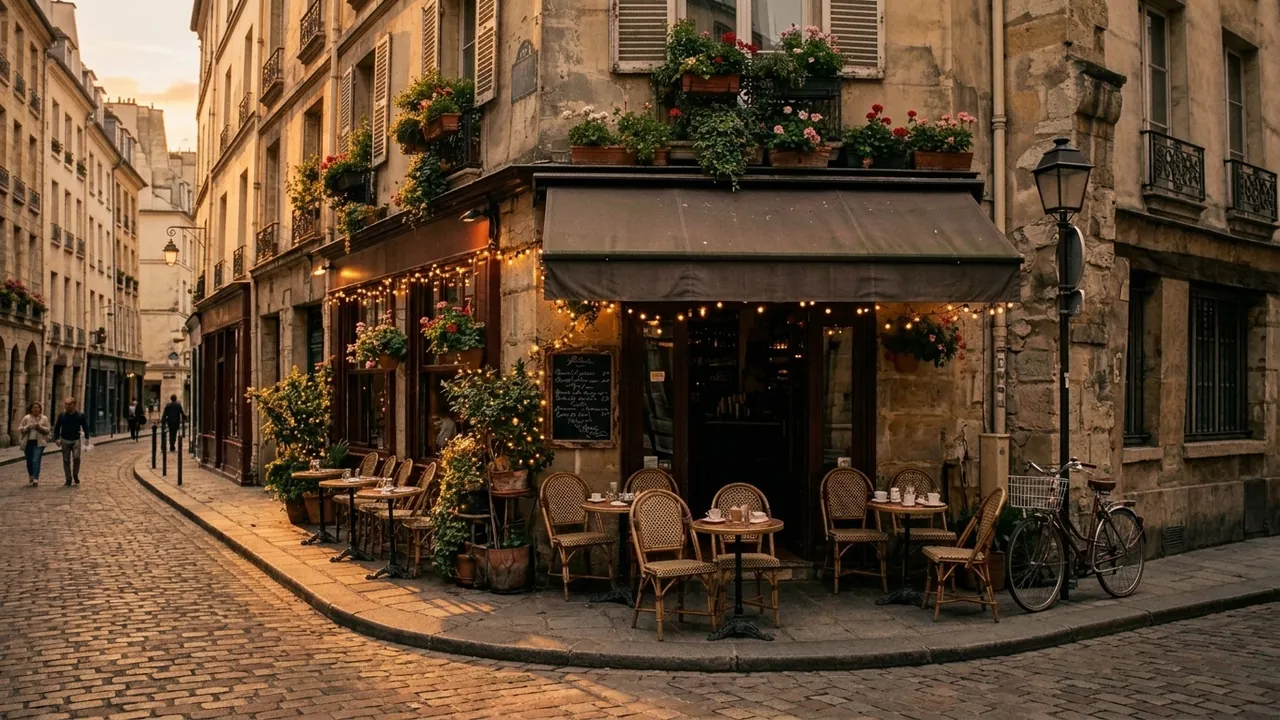
Edit with a prompt
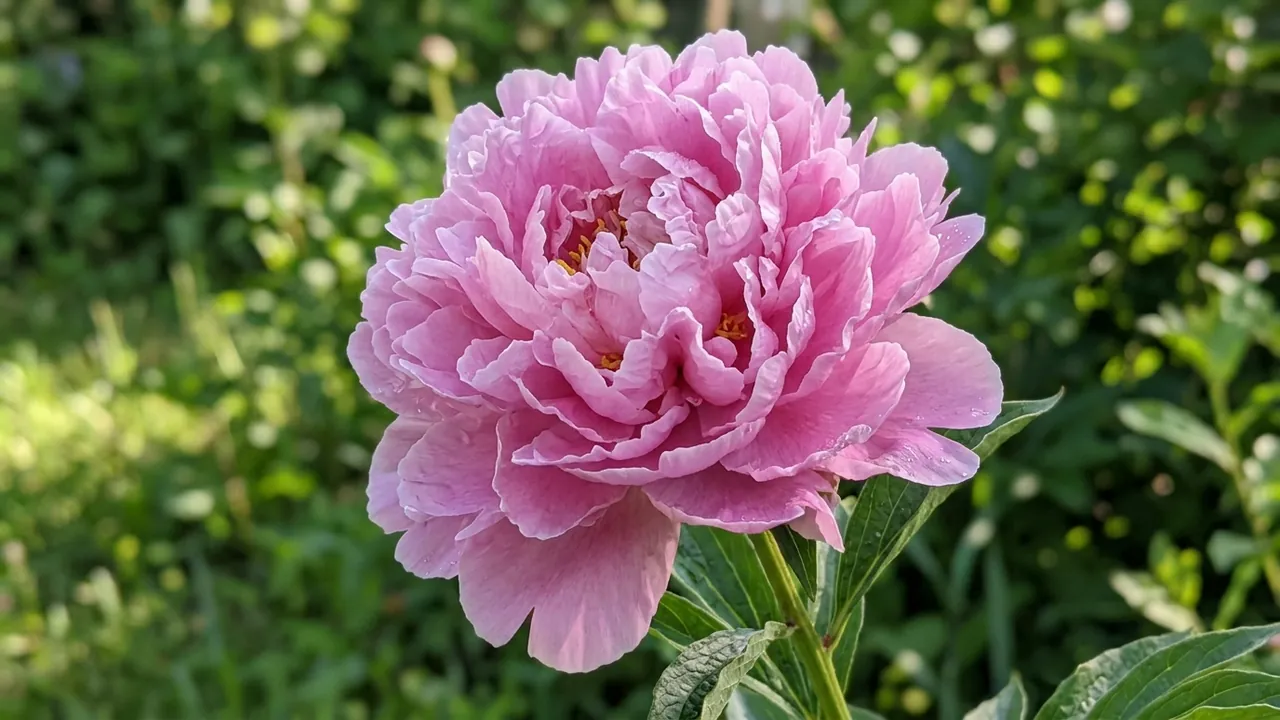
Describe a new look, light or season. The shot and the movement stay the same.
Extend a shot
Keep any clip going, or add a new shot that starts where it ends.
Keyframes and loops
Pick where the clip starts and ends, and starryai makes the motion in between.
Motion transfer
Give a character the moves from any reference clip.
Change the background
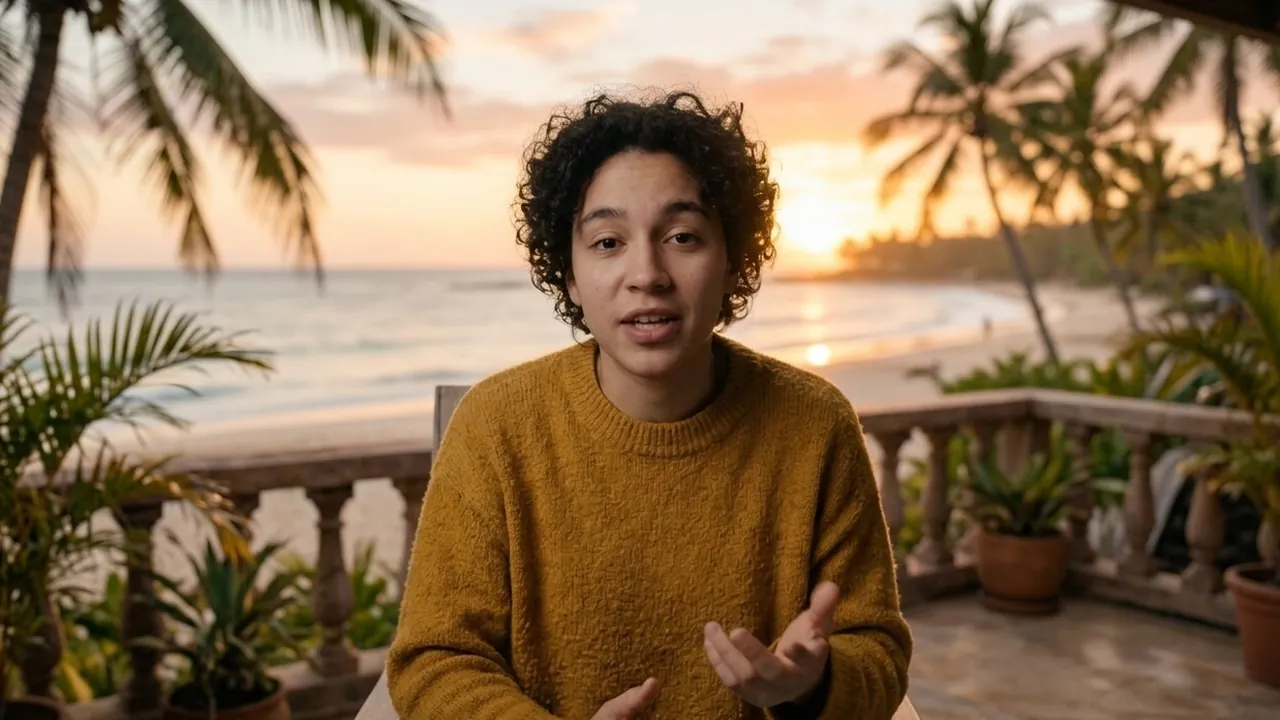
Swap the room behind you for a green screen, a clean backdrop or a new scene.
Reframe for vertical or wide
Turn a wide clip vertical for TikTok, Reels and Shorts, or a vertical clip wide. The subject stays in frame.
Upscale to 4K
Bring the finished clip up to 1080p, 2K or 4K before you export.
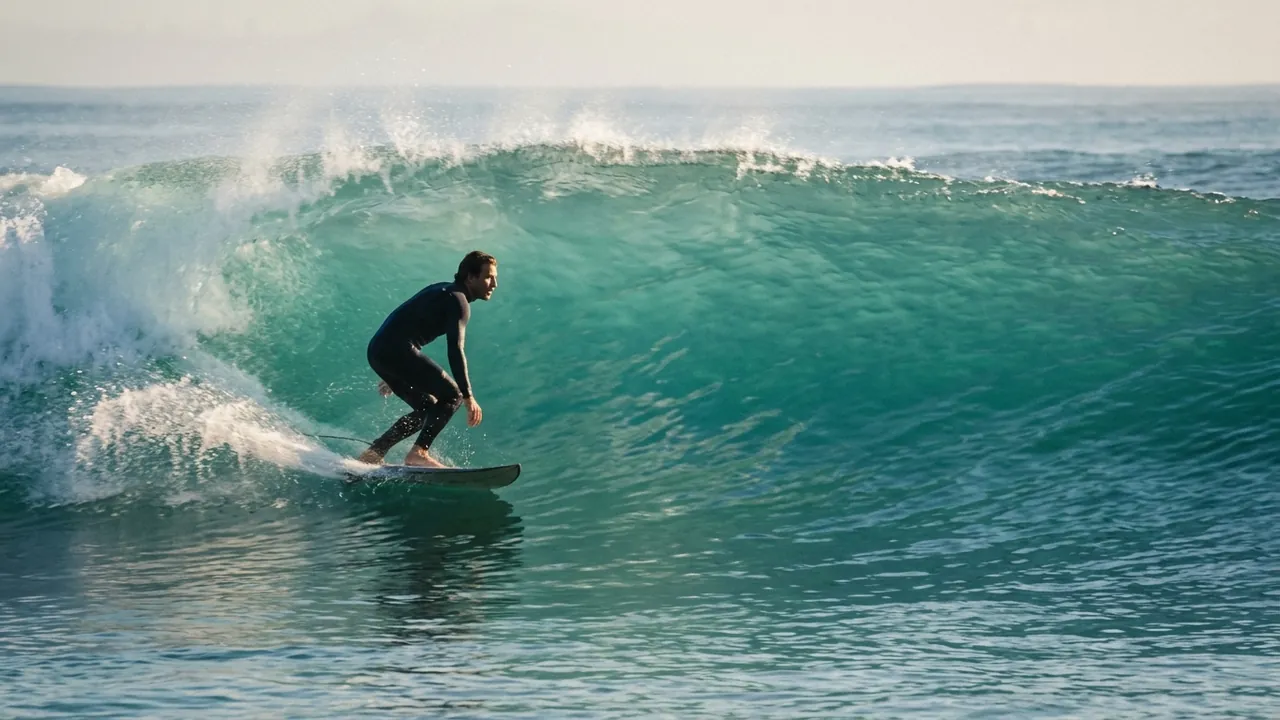
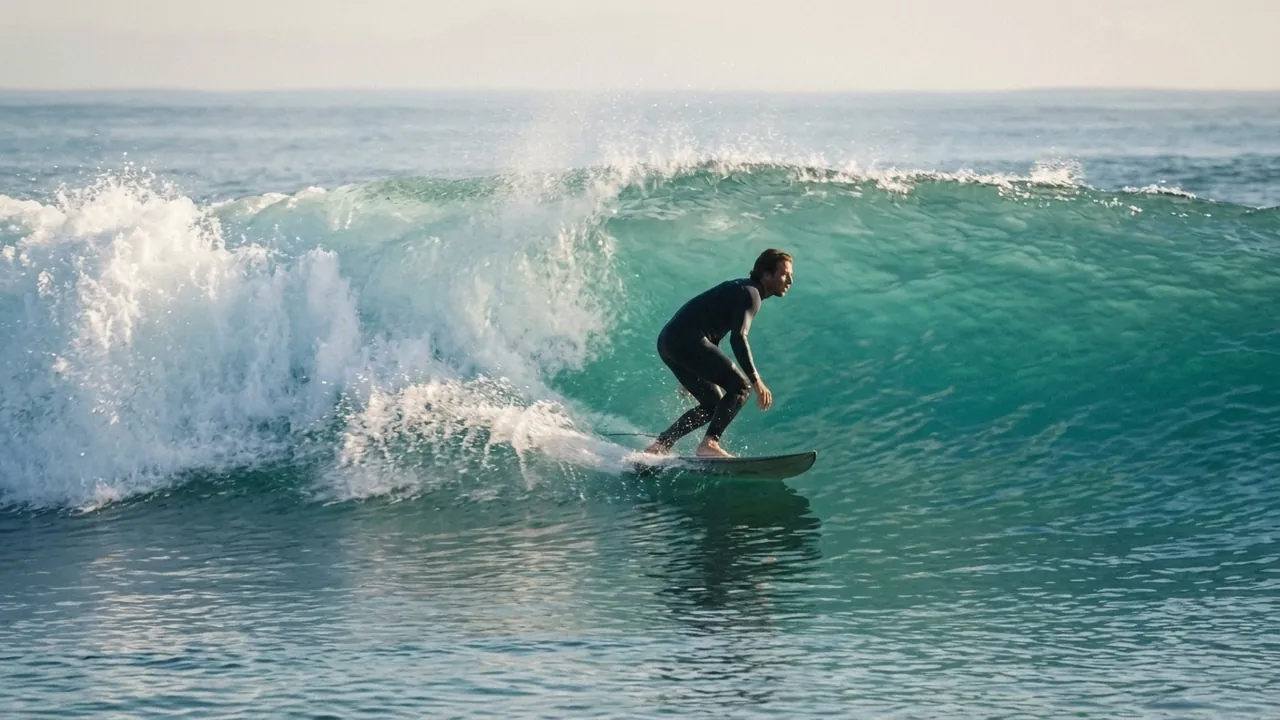
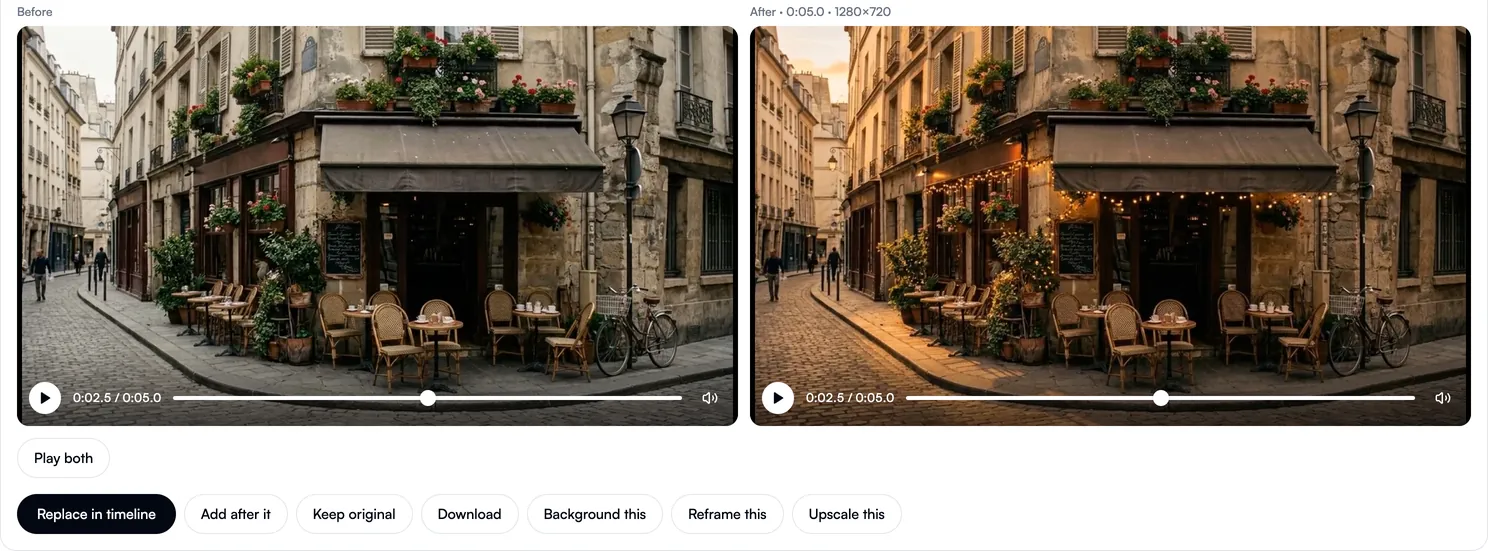
See it next to the original
Every result plays beside your clip. Replace it in the timeline, add it after, or keep the original. Jobs keep running while you work on the rest of your video.
Working with a longer clip? Pick just the part you want to change, and only that part is swapped.
Change every clip at once
Write one prompt for your whole video. Put every clip on the same beach, give them all the same golden light, or reframe the whole video vertical in one go.
Prompt edits, backgrounds, reframing and upscaling run across all your clips. Compare them, then replace them all.
Open Studio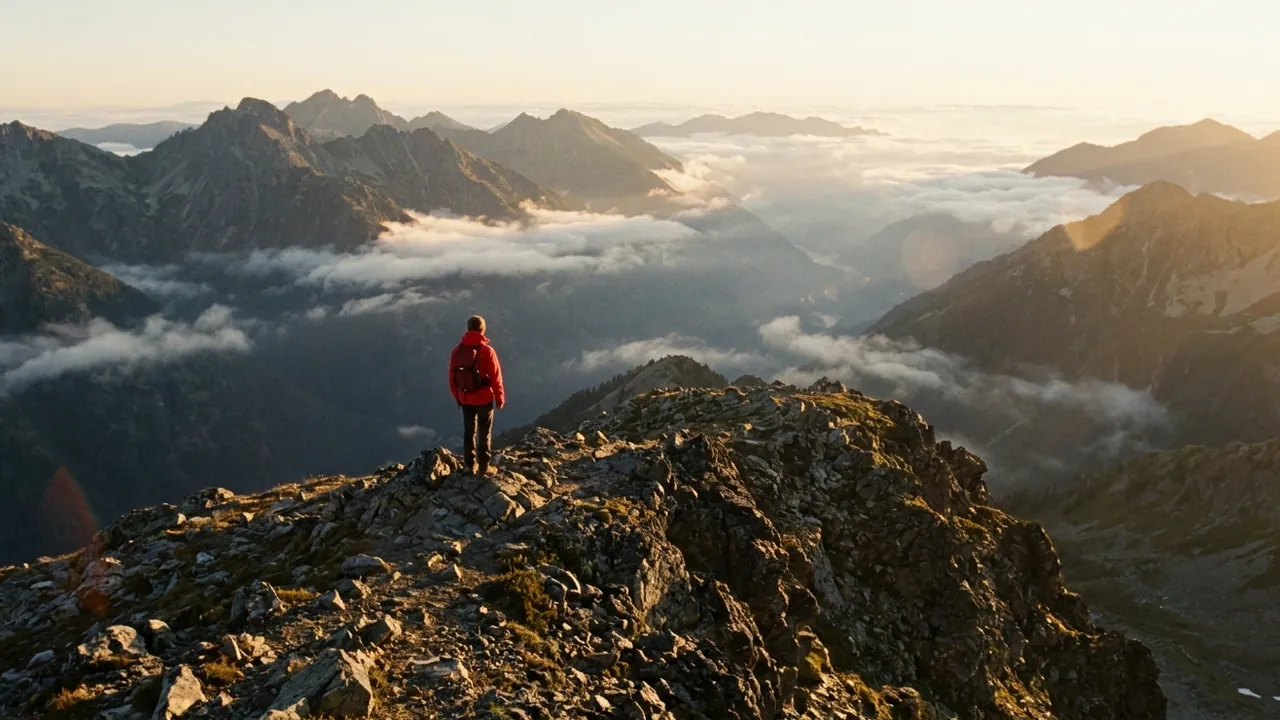
Clip 1 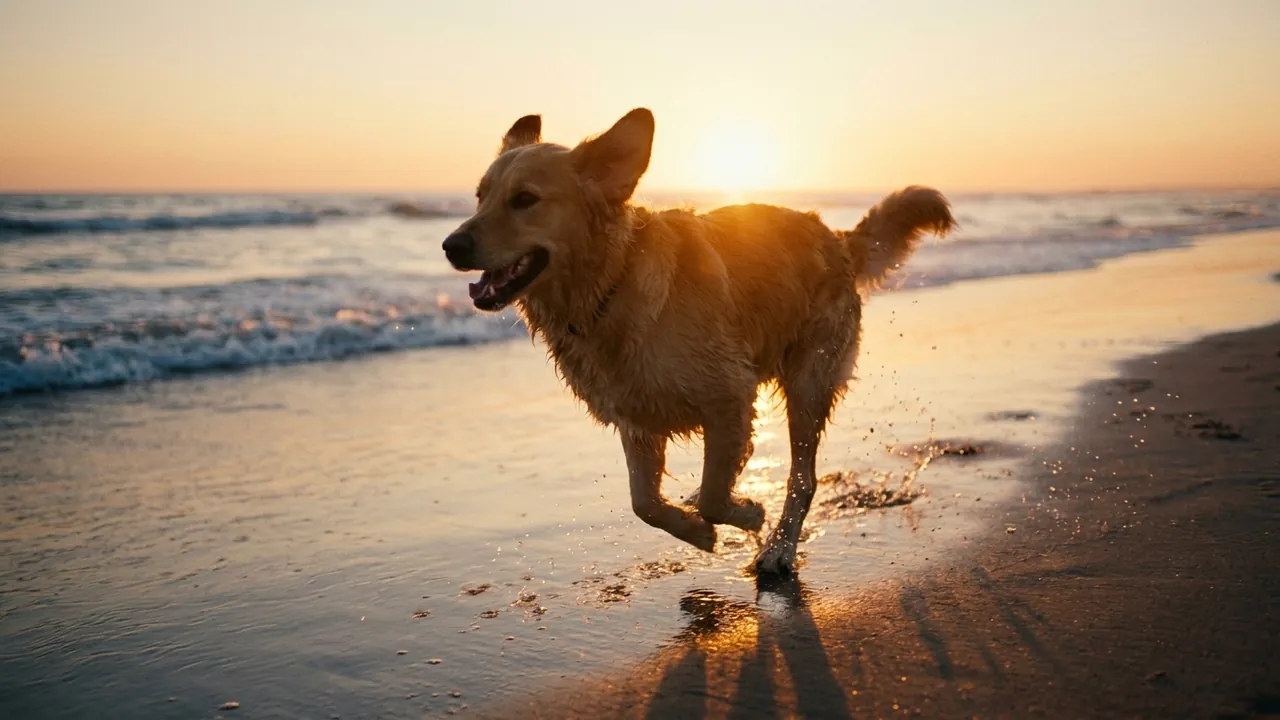
Clip 2 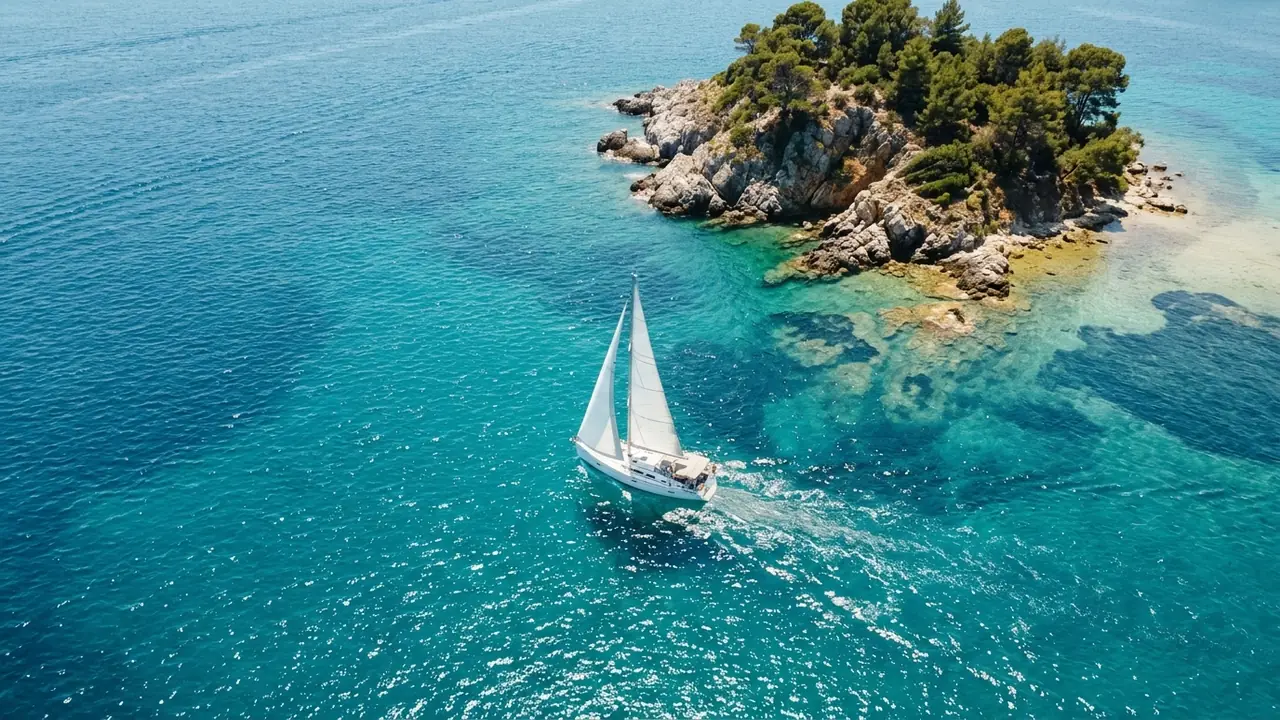
Clip 3
Make every clip verticalReplace all
Your whole video on one timeline
Arrange your clips, add music or a voiceover and open any clip in an AI tool from the side panel.
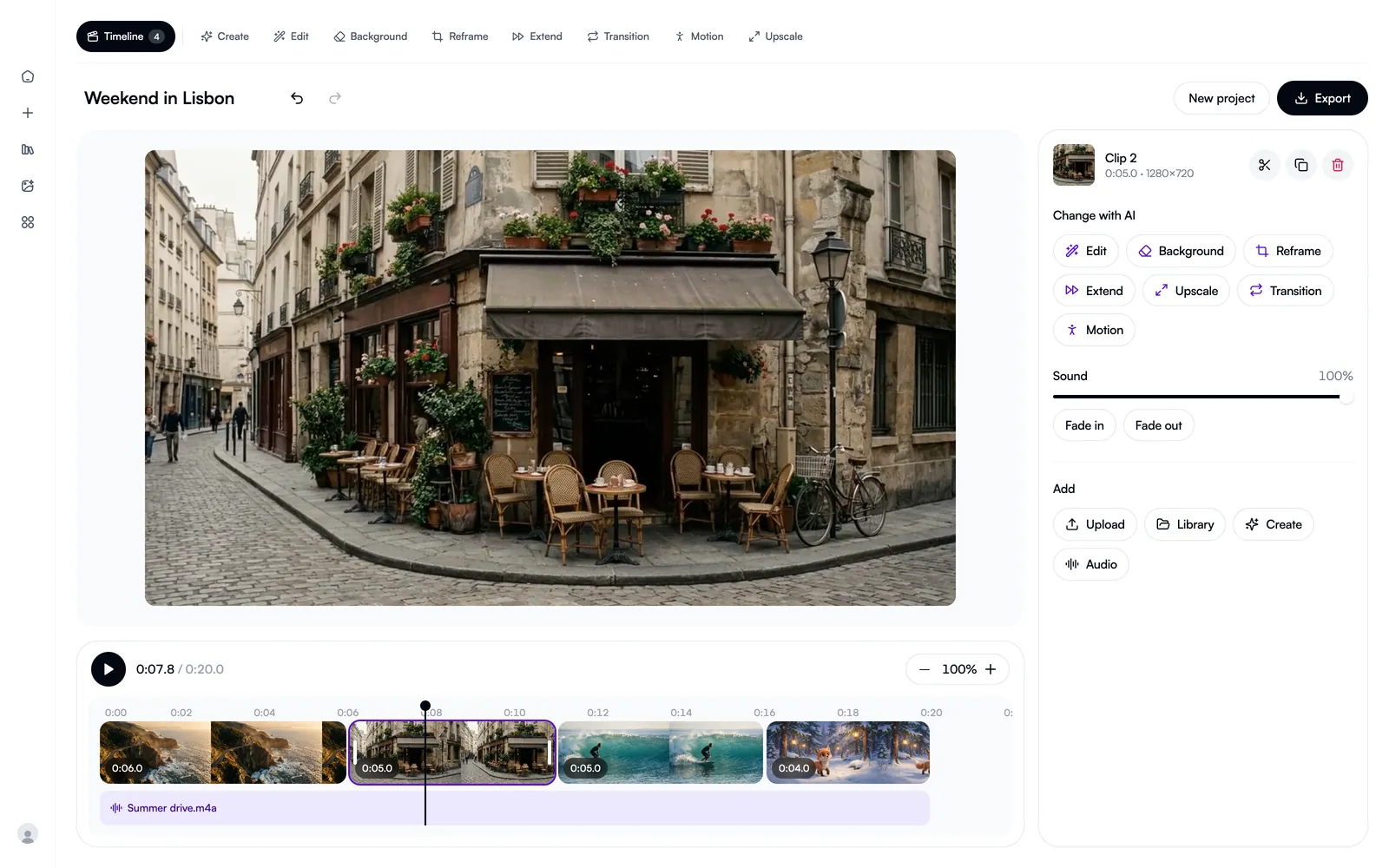
- Trim and split
- Reorder clips
- Music and voiceover
- Fade in and out
- Clip versions
- Export MP4
Finish your video in one place
- Step 1
Bring in your clips
Upload from your device, pick from your starryai library or generate a new clip.
- Step 2
Change any shot
Pick a clip, or the part of it you want, and a tool. Compare the result side by side, then keep it or try again.
- Step 3
Trim, add audio and export
Cut, split and arrange clips, add music or a voiceover, then download an MP4.
More ways to make video
Unlock the full power of starryai

 Popular
- Unlimited standard image generation on supported styles
- Create videos with lumens
- 4,000 fast generations / month
- Unlimited 4× upscaling in slow mode
- 50% off lumens
- Ad-free experience

 Value
- Unlimited standard image generation on supported styles
- Create videos with lumens
- 12,000 fast generations / month
- Unlimited 4× upscaling in slow mode
- 50% off lumens
- Ad-free experience
AI video editor questions
What can I change with a prompt?
Describe a change to the lighting, the time of day, the season, the style or an object in the shot. Each edit covers up to 15 seconds and 50 MB of video, so for a longer clip you pick the part to change. The result is 720p and the same length as that part.
Can I extend any video?
Yes. A video you made in starryai at 360p or 720p, up to 15 seconds long, continues seamlessly. Any other clip, including your uploads, continues as a new shot that starts on its last frame and is added right after it.
Can I change every clip at once?
Yes. Edit with a prompt, change the background, reframe and upscale can run on every clip of a video in one go. The clips queue and run a few at a time, and you compare them and replace them all when you are happy.
Can I change just part of a clip?
Yes. Pick the part of a longer clip you want to change: up to 15 seconds for prompt edits, backgrounds and reframing, up to 30 seconds of a motion reference and up to 60 seconds for upscaling. Only that part is replaced on your timeline.
How do keyframes and loops work?
Choose a first frame, an optional last frame and up to four frames in between, then set a length from 1 to 15 seconds. Loop mode ends the clip where it started.
What do I need for motion transfer?
A picture of your character and a 3 to 30 second clip that shows the movement. The result is 720p.
What else can I do in Studio?
Trim, split and reorder clips on the timeline, add music or a voiceover with its own volume and fades, go back to earlier versions of a clip and export an MP4.
How much does it cost?
Creating a starryai account is free. You see the cost of every video before you start, and the plans below cover video creation and editing.
Can I use the videos commercially?
Yes. Generated media can be used commercially and non-commercially under the starryai license.

Your next edit starts with a sentence
Pick a clip and describe the change.